
Microsoft Excel has the Named Ranges feature that allows users to give a name to a cell or range of cells that can make it easier to refer to in formulas. The naming of the cells can be tedious if there are numerous ranges to be named on the sheet. On our advanced excel training course, we teach a quick way of achieving multiple range names, explained below.
Select the whole range of cells that you wish to name. In the example below, we need to name each Quarter and each Department ranges.
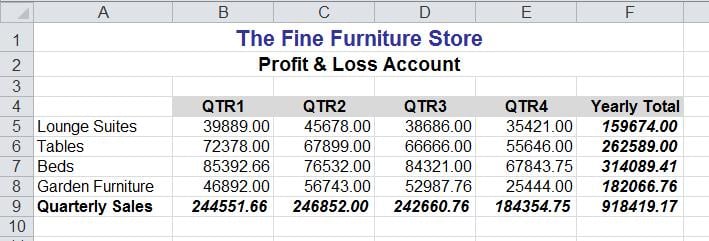 In this example we select A4:F9
From the Formula Ribbon, Defined Name Section, Click the Create from Selection button.
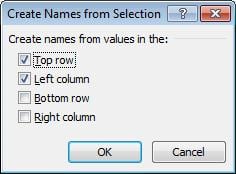 Tick the checkboxes that relate to the range you would like Excel to consider for naming.
Ticking Top Row will create range names for each of the Quarter Columns, and the Left Column will create Department name ranges.
Click OK
The Ranges are created and named. They will appear in the Name Box (beside the formula bar).
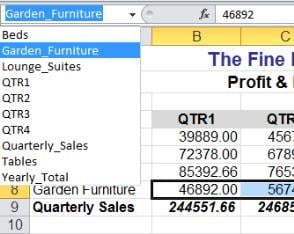 Note: Named Ranges can be edited via the Name Manager option on the Formulas Ribbon.
